
You have an MP4 — a recorded lecture, a music video, a podcast episode — and you only want the audio. Converting MP4 to MP3 strips out the video and leaves you a small, universally playable audio file. This guide covers seven free ways to convert MP4 to MP3 on Windows, Mac, iPhone, and Android — and, unlike most guides, it tells you the honest truth about audio quality along the way.
Quick answer: The fastest way to convert MP4 to MP3 is an online converter like Filevo's MP4 to MP3 tool — drop the video into your browser, pick 192 kbps, and download the MP3. No install, no signup, no watermark. One honest note up front: an MP4 usually stores its audio as AAC, so converting to MP3 is a second lossy step. If you want truly lossless audio, extract it as M4A instead of MP3.
What "MP4 to MP3" Actually Does
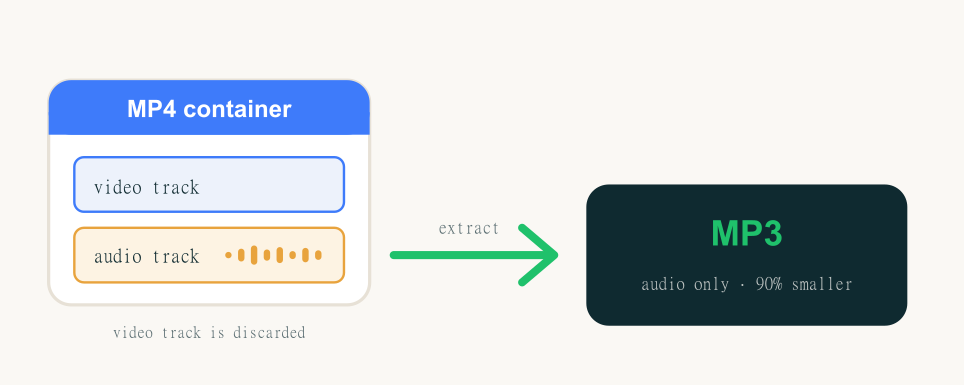
It helps to know what you're really converting. MP4 is a container — a box that holds a video track, an audio track (almost always AAC), and metadata. MP3 is an audio codec — just sound, no video. So "converting MP4 to MP3" really means three things: discard the video track, pull out the audio track, and re-encode that audio as MP3.
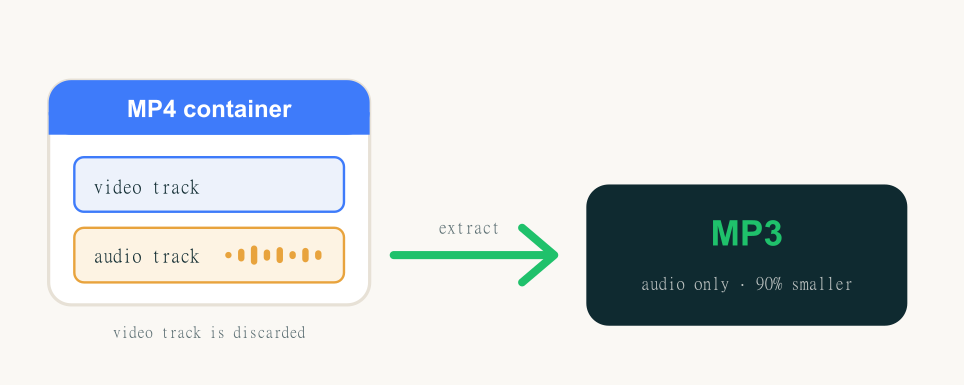
This is why a 200 MB video becomes a 3–8 MB MP3: the picture is the heavy part, and it's thrown away entirely. It's also why the audio quality of your MP3 can never be better than the audio that was already inside the MP4 — extracting sound can't add detail that was never recorded.
Why Convert MP4 to MP3?
People pull MP3 audio out of a video for a handful of very practical reasons. The most common is listening offline without the video: a recorded lecture, a conference talk, or a sermon you want to replay on a walk doesn't need a screen. Saving space is another — an audio file is a tiny fraction of the video's size, so a folder of MP3s fits where a folder of MP4s never would.
Then there's device compatibility: car stereos, older MP3 players, smart speakers, and fitness watches all play MP3 but choke on video files. Podcasters and course creators extract MP3 to publish audio versions of video content. Musicians and editors pull the audio track to remix or caption it. And anyone learning a language or studying from video lessons converts to MP3 so they can loop the audio on a phone. In every case, the goal is the same: keep the sound, drop the weight of the video. If your source is something other than MP4, the video converter and audio converter cover the rest.
Does Converting MP4 to MP3 Lose Quality?
Here's the part most guides get wrong, or quietly avoid. They'll tell you MP4 to MP3 is "lossless" or "no quality loss." That's not accurate, and it's worth understanding why.
The audio inside an MP4 is already a lossy format (AAC). When you convert it to MP3, you're compressing already-compressed audio a second time — a process called transcoding. In theory, that stacks one round of loss on top of another. In practice, at a sensible bitrate the difference is inaudible for almost everyone: a 192 kbps MP3 made from a normal MP4 sounds the same as the source to the human ear. But it is not technically lossless, and any tool that claims otherwise is overselling.
If you genuinely need the original audio with zero additional loss, don't convert to MP3 at all. Instead, extract the audio track without re-encoding it — that keeps the AAC stream exactly as it was, saved in an M4A file. We'll cover how in Method 4, and you can also do it directly with our M4A extractor. For everyone else who just wants a small, play-anywhere file, MP3 at the right bitrate is perfect.
Bitrate Cheat-Sheet: 128, 192, or 320?
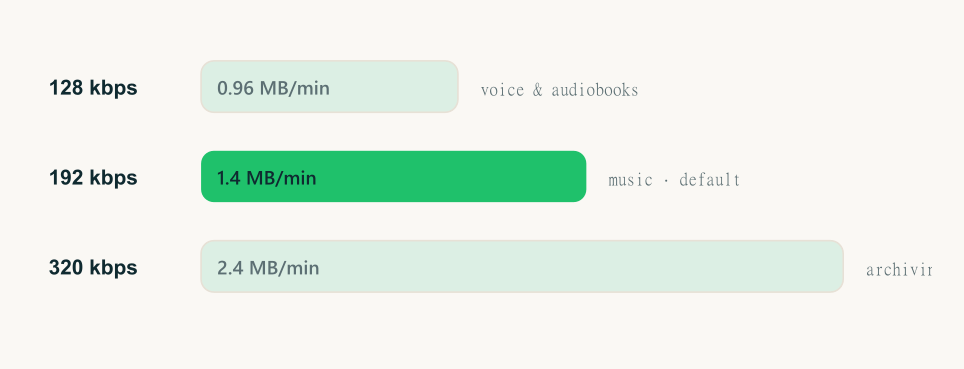
Bitrate is the single biggest lever on MP3 quality and file size. Higher bitrate means better sound and a bigger file. Here's the honest decision in one table:
| Bitrate | Best for | Size per minute | Sound |
|---|---|---|---|
| 128 kbps | Speech, podcasts, audiobooks | ~1 MB | Clear voice, small file |
| 192 kbps | Music, general use (recommended) | ~1.4 MB | Transparent to most listeners |
| 320 kbps | Archiving, critical listening | ~2.4 MB | Maximum MP3 quality |
A useful rule of thumb: a 128 kbps AAC source roughly matches a 192 kbps MP3 in perceived quality, so picking 192 kbps when you convert MP4 to MP3 leaves you comfortable headroom. When in doubt, 192 kbps is the right default.
Avoid Converting the Same File Twice
Because every MP3 conversion is lossy, re-converting the same audio over and over — MP4 to MP3, then that MP3 to another MP3, and so on — slowly wears it down. The fix is simple: always convert from the highest-quality source you have, in a single step. If you still have the original video, convert that straight to MP3 once; don't take a low-bitrate MP3 you found somewhere and expect a higher setting to rescue it, because the detail is already gone. This is also the practical reason to extract a lossless M4A first when you know you'll keep editing or re-exporting the audio later — you can make fresh MP3s from the lossless copy as often as you like without compounding the loss.
Method 1 — Convert MP4 to MP3 Online (Fastest, No Install)
The simplest way to convert MP4 to MP3 is in your browser — nothing to download, and it works identically on Windows, Mac, and phones.
- Open the MP4 to MP3 converter.
- Drag your MP4 into the page (or tap to pick one).
- Choose your bitrate — 128, 192, or 320 kbps.
- Download the MP3.
Filevo extracts the audio with ffmpeg right in your browser session, adds no watermark, requires no signup, and auto-deletes your files 24 hours after conversion. For most people converting a few videos, this is all you need — and because it runs in the browser, the exact same steps work on a phone (more on that in Method 7).
Method 2 — Batch Convert Many MP4s at Once
Have a whole folder — a podcast season, a course, a set of recordings? Converting them one at a time is tedious. Filevo batch-converts up to 50 MP4 files to MP3 in a single pass and returns them as one ZIP. Drop the whole set in, pick a bitrate once, and download everything together. If your files are a mix of audio and video formats, the MP3 converter hub handles them all and points each one to the right tool.
Method 3 — VLC (Windows & Mac, Offline)
VLC Media Player is free, runs offline, and can convert MP4 to MP3 on both Windows and Mac. It's the best no-cloud option when you'd rather keep everything on your machine.
- Open VLC and go to Media → Convert / Save (on Mac: File → Convert / Stream).
- Add your MP4 file and click Convert / Save.
- Under Profile, choose Audio – MP3.
- Pick a destination filename ending in
.mp3and click Start.
VLC is reliable but slower and clunkier than a browser converter for quick jobs, and it converts one file at a time. It shines when you want a trusted offline tool you already have installed.
Method 4 — FFmpeg (Power Users, and the True Lossless Option)
If you're comfortable with a command line, ffmpeg is the fastest and most flexible way to convert MP4 to MP3 — and it's the cleanest way to get truly lossless audio.
To convert MP4 to a high-quality MP3:
ffmpeg -i input.mp4 -q:a 0 -map a output.mp3To extract the original audio with zero re-encoding (lossless, saved as M4A):
ffmpeg -i input.mp4 -vn -c:a copy output.m4aThat second command is the honest power move: -c:a copy copies the AAC audio stream byte-for-byte instead of transcoding it, so there's no second round of quality loss. If you don't want to touch a command line, our browser-based M4A extractor does the same lossless extraction for you.
Method 5 — Convert MP4 to MP3 on Windows
On Windows 10 or 11, you have three realistic paths. The online converter (Method 1) needs no install and is fastest — just open the tool in Edge or Chrome. VLC (Method 3) is the best offline choice if you already have it. FFmpeg (Method 4) is for batch scripts and lossless extraction. Windows has no built-in one-click "MP4 to MP3" button, so one of these three is the way to go — and for a single file, nothing beats dropping it into the browser.
Method 6 — Convert MP4 to MP3 on Mac
Mac users can use the same online converter in Safari or Chrome with zero setup, or VLC via File → Convert / Stream. QuickTime can export audio-only in some cases, but it's limited and often exports to M4A rather than MP3 — which, as we covered, is actually the better choice if you want lossless. For a quick MP3, the browser route is the least fuss on macOS too.
Method 7 — Convert MP4 to MP3 on iPhone & Android
This is where browser-based conversion really pays off. Because Filevo runs in the browser, your phone can convert MP4 to MP3 with no app to install: open the page in Safari or Chrome, pick the video from your Files or gallery, choose a bitrate, and the MP3 downloads to your device. There are native apps that do this too, but they're often ad-heavy or watermark the output — a browser converter avoids both. The same privacy promise applies on mobile: no signup, no watermark, files deleted in 24 hours.
MP3 vs M4A vs WAV — Which Should You Extract?
MP3 isn't your only option when pulling audio out of a video. Here's how the three common targets compare:
| Format | Type | Size | Best for |
|---|---|---|---|
| MP3 | Lossy | Small | Universal playback, sharing, devices |
| M4A | Lossy (or lossless copy) | Small | Lossless extraction from MP4 (-c:a copy), Apple devices |
| WAV | Uncompressed | Very large | Editing, mastering, archival |
The honest guidance: choose MP3 for a small file that plays on absolutely everything. Choose M4A when you want the original audio with no extra loss (it's what's already inside most MP4s). Choose WAV only if you're editing the audio and need an uncompressed working file. If you're starting from a different source, the audio converter hub covers every format, and you can also convert WAV to MP3 or FLAC to MP3 the same way.
Honest Limits & Common Pitfalls
A few things no converter can do, so you know what to expect:
- You can't improve a low-quality source. If the MP4's audio was recorded at a low bitrate, converting to 320 kbps MP3 won't add detail — it just makes a bigger file of the same quality.
- Metadata and cover art may not carry over. Many MP4s have no title or artist tags to begin with; add them in your music player afterward if needed.
- Streaming rips are off the table. Filevo converts files you own and upload — it doesn't download from YouTube or other streaming sites, which prohibit it. If you have the original recording, you're good.
- There are sensible size limits. Anonymous uploads go up to 200 MB per file (500 MB with a free account), which covers most videos comfortably.
Frequently Asked Questions
Is converting MP4 to MP3 free? Yes. Online tools like Filevo convert MP4 to MP3 free with no signup and no watermark, VLC and ffmpeg are free software, and there's nothing to buy at any step.
Does converting MP4 to MP3 lose quality? A little, technically — the audio inside an MP4 is already lossy (AAC), so making an MP3 is a second lossy pass. At 192 kbps or higher it's inaudible for almost everyone. For zero added loss, extract the audio as M4A instead.
Will I still have my video after converting? Yes. Conversion creates a new MP3 file and leaves your original MP4 untouched. The MP3 simply contains the audio track; the video stays exactly as it was.
Is it legal to convert MP4 to MP3? Converting files you own — your own recordings, videos you created, or media you've licensed — is fine. Don't convert content you don't have the rights to, and note that ripping from streaming services violates their terms.
What's the best bitrate for MP4 to MP3? 192 kbps for music and general use, 128 kbps for speech and podcasts, 320 kbps for archiving or critical listening. When unsure, pick 192 kbps.
Can I convert multiple MP4 files at once? Yes — Filevo batch-converts up to 50 files in one pass and returns them as a single ZIP, which is ideal for a whole podcast season or course folder.
Can I convert MP4 to MP3 on my phone? Yes. A browser-based converter runs on iPhone and Android with no app to install — open the page, pick your video, and download the MP3.
Should I extract MP3 or M4A? Choose MP3 for a small file that plays everywhere. Choose M4A if you want the original audio with no extra quality loss, since it can be copied straight out of the MP4 without re-encoding.
Why is my MP3 so much smaller than the MP4? Because the video track — by far the largest part of the file — is discarded entirely. Only the audio is kept and compressed, so a 200 MB video routinely becomes a 4–8 MB MP3. That's expected, not a sign that anything beyond the video was lost.
The Bottom Line
There are plenty of ways to convert MP4 to MP3, but for most people two cover everything: an online converter at 192 kbps for a quick, small, share-anywhere MP3, and the M4A route when you want the original audio with no extra loss. Skip the tools that promise "no quality loss" — now you know the honest truth, and you know exactly which method fits your file. Need to pull audio from other formats too? The audio converter handles the rest.