
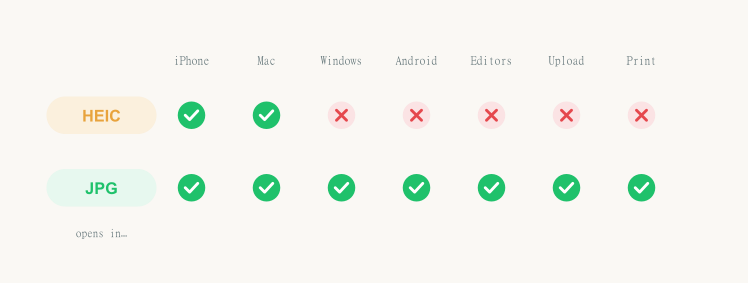
You took a great photo on your iPhone, emailed it to yourself, opened it on your Windows PC — and got a file that simply won't open. That's HEIC. This guide shows you six free ways to convert HEIC to JPG on Windows 10 and 11, from a no-install online converter to fixing the problem at the source so your iPhone never makes HEIC files again.
Quick answer: The fastest free way to convert HEIC to JPG on Windows is an online converter like Filevo's HEIC to JPG tool — drop the file in your browser, download the JPG, no software and no signup. If you'd rather never deal with HEIC again, change your iPhone setting (Settings → Camera → Formats → Most Compatible) and it'll shoot JPG from now on.
Why Windows Can't Open Your iPhone HEIC Photos
Since iOS 11, iPhones save photos as HEIC by default instead of JPG. HEIC (High Efficiency Image Container) uses the modern HEVC/H.265 codec to pack a photo into roughly half the size of a JPG — great for your iPhone's storage, frustrating everywhere else.
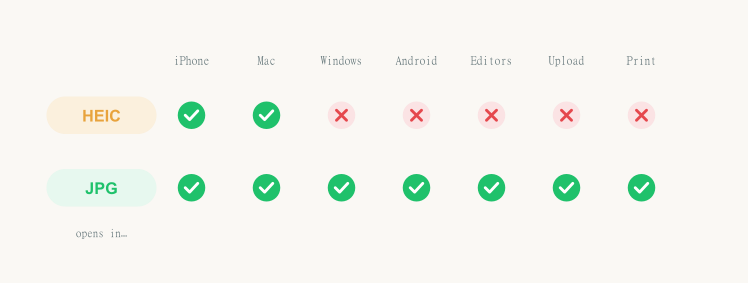
The problem is that Windows doesn't include the HEVC decoder out of the box. So when a .heic file lands on a Windows 10 or 11 machine, the Photos app shows a blank or an error, older versions of Photoshop refuse it, and most upload forms reject it. You're not doing anything wrong — Windows just doesn't speak HEIC natively. Converting HEIC to JPG turns your photo back into a file that opens absolutely everywhere.
HEIC on Windows 11 vs Windows 10: Any Difference?
Not as much as you'd hope. On Windows 11, Microsoft has improved HEIC handling in newer builds, and the free HEIF Image Extensions usually install cleanly from the Microsoft Store so the Photos app can at least display your iPhone photos. On Windows 10, you almost always have to add the HEIF extension manually before anything will even show a HEIC thumbnail.
But — and this is the key point on both Windows 10 and Windows 11 — being able to view a HEIC is not the same as converting it. Neither version gives you a one-click "save this whole folder as JPG" button built in. Whether you're on Windows 10 or Windows 11, the reliable way to convert HEIC to JPG is still one of the methods below: an online converter, Paint's "Save as JPEG," a desktop app, or fixing it on your iPhone. The good news is that every method in this guide works identically on both versions of Windows.
HEIC vs JPG: Which Should You Actually Use?
| HEIC | JPG | |
|---|---|---|
| Compatibility | Apple devices, modern apps | Universal — every device and app |
| File size | Smaller (~50% of JPG) | Larger |
| Quality | Excellent at small size | Excellent, slightly less efficient |
| Editing & uploads | Often rejected | Accepted everywhere |
| Best for | Storing photos on iPhone | Sharing, printing, uploading, editing |
HEIC is the better format for storing photos. JPG is the better format for using them anywhere outside the Apple ecosystem — which is exactly why you're here.
Honest Heads-Up: Your File Gets Bigger After Converting
Here's something almost no other guide tells you: after you convert HEIC to JPG, the file usually gets bigger — often 1.5 to 2 times the original size. That is completely normal and not a sign that something went wrong.
HEIC's HEVC compression is far more efficient than JPG's older compression, so the same picture simply needs more bytes as a JPG. You're trading a little disk space for a file that opens anywhere. If a 2 MB HEIC becomes a 4 MB JPG, that's expected.
Method 1 — Convert HEIC to JPG Online (Free, No Install)
The simplest way to convert HEIC to JPG on Windows is an online converter — nothing to download, and it works the same on Windows 10, Windows 11, a Mac, or even your phone.
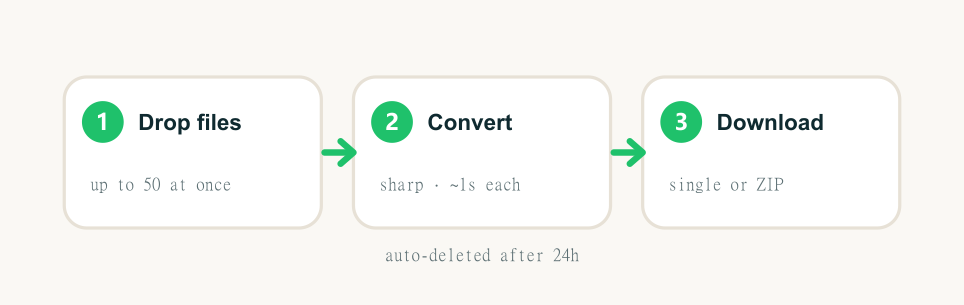
- Open the HEIC to JPG converter in your browser.
- Drag your
.heicfile (or several) into the page. - Download the JPG, or download all of them as a ZIP.
Filevo runs the conversion in your browser, converts up to 50 files at once, adds no watermark, requires no signup, and auto-deletes your files after 24 hours. Because it's web-based, there's no software to install and no paid extension to buy. This is the method most people should use for a few photos or a small batch.
The same approach works for other formats your iPhone might produce — if a file is actually AVIF to JPG or WebP to JPG, use those tools instead; the steps are identical.
Method 2 — Microsoft Paint "Save As JPEG" (Built-In, Single File)
Windows already ships with a tool that can save JPGs: Paint. The catch is that Paint can only open a HEIC file if Windows has the HEIF Image Extensions installed (see Method 3). Once it can open the file:
- Right-click the HEIC file → Open with → Paint.
- Click File → Save as → JPEG picture.
- Choose a location and save.
This is the fastest built-in option for a single photo. It's not practical for dozens of files, since you'd repeat it one at a time — for that, jump to the batch method below.
Method 3 — Photos App + HEIF Extension (View First, Then Convert)
Microsoft offers a HEIF Image Extensions add-on so the Photos app can display HEIC files. Install it from the Microsoft Store and the Photos app will start showing your iPhone photos.
But here's the honest trap most guides skip: the extension lets you view HEIC, not batch-convert it. And there are two separate add-ons:
- HEIF Image Extensions — free, lets Windows display HEIC images.
- HEVC Video Extensions — historically a $0.99 paid add-on, needed for some HEVC media.
Installing HEIF gets you viewing. To actually get JPGs, you still open each photo and use Save as (or the Paint route above). If your goal is converting rather than just looking, an online or desktop converter is faster and avoids the paid-extension confusion entirely.
Method 4 — Free Desktop Apps for Offline & Batch
If you convert HEIC regularly or want everything to stay offline, a desktop app is worth installing:
- CopyTrans HEIC — adds right-click "Convert to JPEG" to Windows Explorer; great for quick offline conversions.
- iMazing HEIC Converter — free drag-and-drop app, handles batches well.
- IrfanView — a classic lightweight image viewer that can batch-convert with a plugin.
These are best when you don't want anything leaving your computer, or when you convert HEIC to JPG often enough that a permanent tool makes sense.
Method 5 — Batch Convert an Entire Folder of HEIC
Got a whole vacation album? Converting one at a time is painful. Three ways to batch convert HEIC to JPG on Windows:
- Online (easiest): drop a whole selection into Filevo — it converts up to 50 files in one pass and returns them as a single ZIP.
- Desktop right-click: with CopyTrans HEIC installed, select every file in a folder, right-click → Convert to JPEG.
- PowerShell (advanced): if you have ImageMagick installed, a one-liner like
magick mogrify -format jpg *.heicconverts every HEIC in the current folder.
For most people, the online batch route is the quickest and needs zero setup.
Method 6 — Fix It at the Source: Make Your iPhone Shoot JPG
The most permanent fix isn't on Windows at all — it's on your iPhone. You can tell it to capture JPG from the start:
- On your iPhone, open Settings → Camera → Formats.
- Tap Most Compatible instead of High Efficiency.
From now on, your iPhone saves new photos as JPG, and Windows opens them with no conversion at all. The one catch: this only affects future photos — every HEIC already in your camera roll still needs converting (use Method 1 or 5 for those). Many people do both: switch the setting going forward, and batch-convert the existing library once.
Which Method Should You Choose?
| Method | Free | Install needed | Batch | Best for |
|---|---|---|---|---|
| Online converter | Yes | No | Yes (50) | Most people, any device |
| Paint "Save as" | Yes | HEIF ext to open | No | A single file, fast |
| Photos + extension | Free ext | Yes | No | Just viewing HEIC |
| Desktop app | Yes | Yes | Yes | Frequent, offline use |
| iPhone setting | Yes | No | N/A | Preventing HEIC forever |
Decision in one line: A few photos right now → online converter. A whole folder → online batch or a desktop app. Never want HEIC again → change the iPhone setting and convert your existing library once.
Frequently Asked Questions
Is converting HEIC to JPG free? Yes. Online tools like Filevo convert HEIC to JPG free with no signup or watermark, Paint is built into Windows, and the iPhone setting change costs nothing. You only run into a (historically $0.99) paid add-on if you go the HEVC Video Extensions route, which you can avoid entirely.
Does converting HEIC to JPG lose quality? Barely. A good converter re-encodes at high quality, so the JPG looks the same as the HEIC for any normal use. JPG is technically lossy, so there's a tiny re-encode, but it's invisible at normal viewing.
Why is my JPG bigger than the HEIC? Because HEIC's HEVC compression is far more efficient than JPG's. The same photo needs more bytes as a JPG — often 1.5–2× the HEIC. That growth is normal and is simply the price of a file that opens everywhere.
Can I convert HEIC to JPG without installing software? Yes — that's the whole point of an online HEIC to JPG converter. It runs in your browser, so there's nothing to download on Windows 10 or 11.
How do I batch convert a whole folder of HEIC? Use an online tool that accepts multiple files (Filevo does up to 50 and returns a ZIP), a desktop app like CopyTrans HEIC with right-click conversion, or a PowerShell command if you have ImageMagick installed.
Is it safe to use an online HEIC converter? With a reputable tool, yes. Filevo, for example, adds no watermark, requires no account, and auto-deletes your files 24 hours after conversion. For maximum privacy you can also use an offline desktop app.
Does Windows 10 or 11 open HEIC natively? Not by default — Windows doesn't ship the HEVC decoder, so you'll see a blank or an error until you install the HEIF extension or convert to JPG. Converting to JPG is the most reliable fix.
How do I stop my iPhone from making HEIC files? Go to Settings → Camera → Formats and choose Most Compatible. Your iPhone will save new photos as JPG, so they open on Windows with no conversion.
The Bottom Line
You have six free ways to convert HEIC to JPG on Windows, but most people only need two: an online converter for the photos you already have, and the iPhone "Most Compatible" setting so you never make HEIC again. No paid extensions, no quality loss, and your JPGs will open on every PC, app, and upload form you throw at them.
If you also run into other modern formats from the web or your phone, the same browser-based approach works for AVIF to JPG, WebP to JPG, and dozens of other image conversions.